
Privacy-first digitalisierung using Paperless-ngx

I live in a country that is known to rely heavily on paper. Like, I receive snail mail for important things – bank letters, notifications, communications, etc.
For a long time, I maintained (still do) physical folders – separated into categories like "bills", "taxes", "official", "rent", etc. Later on, I began to scan them and save them in the cloud through Google drive.
I got into homelabbing relatively recently, and I came across paperless-ngx - a document management system, and I thought to set that up.
I've been using it for about a week now, and it's been exactly what I needed – essentially digitising my physical folders & papers. In this post, I will write about how I set it up and my workflow.
Goal
My goal with this project, was to be able to scan a document, put it in a specific folder on my NAS, and have it synced to the Paperless-ngx server, in a way that I can browse, tag and manage it on the web UI.
One major constraint here is that I still want to be able to interact with the file directly on my NAS without having to log into the web UI, just in case something happens with the server, and it's for some reason, not accessible.
Environment
I use Proxmox to manage my self-hosted services, and I do have a Network Attached Storage device on which I keep my data.
Setup & Installation
Paperless-ngx can be set up in various ways – through their installation script, docker, or bare-metal.
One of the most useful resources I have learned about in my homelabbing journey is Proxmox community scripts.
Luckily, they have a script for installing Paperless-ngx, and I grabbed that and used it. Thanks to all the contributors that made this a breeze. This script creates an LXC and installs paperless-ngx in the bare-metal mode. You only need to follow the prompts and choose options that best suit you.
In my case, I already knew that I wanted to host the actual documents on my NAS, so that I can also access the documents outside of Paperless-ngx environment if I ever need to. However, LXCs cannot mount network drives/shares by default in an unprivileged container, so you may want to make the LXC privileged, or you go through the work to mount an NFS drive in an LXC.
While I acknowledge that this might be an anti-pattern and a potential security hole, I decided to make my container privileged. It's a well calculated risk, that I decided to accept.
Post-install customisation
After installation, the UI is available at <your-ip>:8000 . There are a couple of important things to know.
First, the admin credentials for the dashboard can be found by running cat ~/paperless-ngx.creds inside the container that was created.
Second, the installation is found in /opt/paperless . The configuration file for the installation that enables you configure these options is at /opt/paperless/paperless.conf .
Third, is the directory layout. There are at least 3 important directories when it comes to Paperless-ngx:
- data directory – this is where the database, logs, etc., are stored.
- media directory – this is where the files are stored, alongside their thumbnails.
- consume directory – this is a directory where Paperless-ngx automatically detects a new upload, and processes it, and sends it into the media directory.
Custom directories
Having learned about the main 3 directories, the first thing I wanted to do is customise those directories. Since one of the constraints here, was to be able to access my documents even outside of the Paperless-ngx environment. That meant that the NAS was a good place to save the media and to upload new documents.
The first step was to create an NFS share on the NAS. The steps to do this will vary slightly from NAS-to-NAS, but they generally follow the lines described here.
After successfully creating the NFS share, the next step was to mount it on my Paperless-ngx instance server, and make sure it is permanently mounted even if the server is restarted. To do that, you need to follow these next steps.
Create the mount point on the server
You need to define where you want to mount the NFS drive. A common convention is to mount it within the /mnt directory. In this case you can create a directory called paperless within that directory, using:
mkdir -p /mnt/paperless/consume
mkdir -p /mnt/paperless/data
Mount the NFS drive to the directories
To make sure this directory is continued to be mounted even across reboots, you edit the file systems table - /etc/fstab file and define your sharing there. My configuration looks a bit like this:
<nas ip>:/path/to/consume /mnt/paperless/consume nfs auto,nofail,rw,users 0 0
<nas ip>:/path/to/data /mnt/paperless/data nfs auto,nofail,rw,users 0 0
You might want to enforce the mount by running mount -a and reloading the table by running systemctl daemon-reload. If you receive no errors, you should be good.
Change the policy for detecting new files
By default Paperless-ngx uses inotify events to know when a new file is available to be processed, but this is unreliable for network shares, because they don't always publish these events. As a result, we will need to set a polling interval. A value of 20 means, that the consume directory will be checked every 20 seconds, and if a new file is detected, it will be processed then.
Test it
After making all these changes, you can restart the server. Log in to the web UI using the credentials, and test that everything is working by adding a pdf file to /path/to/consume on your NAS.
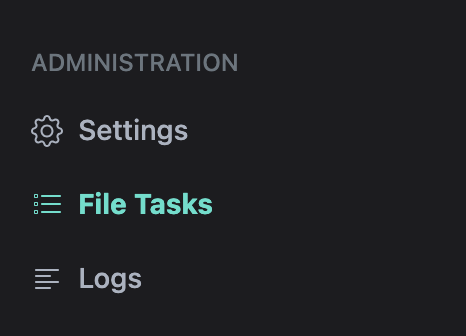
Navigate to the "File tasks" page on the bottom end of the left pane to see any activity. If everything works correctly, you should see a task with the name of the file you added.
Customising my workflow
Now to how I use it. I have created a couple of rules so far that help me organise it.
Correspondent
I make sure every file has a correspondent. You can think of a correspondent as who the letter is from. Looking at my paper files for my use-case, most of the letters or documents I receive are from my landlord, tax office, insurance, my employer, etc. These are correspondents.
Storage Paths
I make sure every file has a storage path. A storage path is a description of Paperless-ngx stores the file. For example, you probably want to collect all your insurance documents in one folder, separated by year, or by "issuer".
Conclusion
I have been running this for about a month now, and I am finding it very helpful to manage my paper archive. I hope it helps too.